
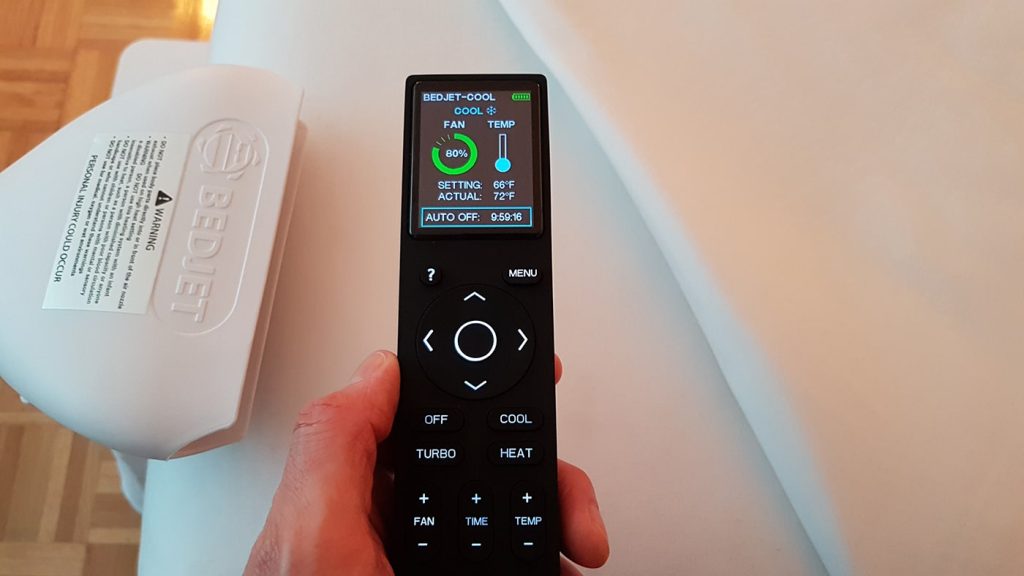
The pursuit of perfect sleep often comes down to one crucial element: temperature. If you’re a BedJet owner, you’ve already taken a massive leap towards achieving that blissful, all-night comfort. But the true gateway to commanding your personal sleep climate is the often-underestimated device sitting on your nightstand: the BedJet remote.
This comprehensive guide is dedicated to making you an expert on your BedJet remote. We’ll dive deep into every button, feature, and hidden function. Whether you’re unboxing your system for the first time, troubleshooting a frustrating connection issue, or looking to unlock advanced features you never knew existed, this article is your definitive resource. Let’s transform the way you interact with your BedJet and, in turn, transform your sleep.
Understanding Your BedJet Remote: Models and Key Features
Before you can master your remote, it’s essential to know which model you have and what it’s capable of. BedJet has evolved its remote design over the years, but the core philosophy of intuitive control remains constant.
Classic Remote vs. Smart Remote: What’s the Difference?
BedJet primarily offers two physical remote types. Identifying yours is the first step.
The Classic Remote (often bundled with BedJet 3) is a sleek, black, rectangular remote with a blue backlit LCD screen. It features a circular navigation pad and dedicated buttons for primary functions. It communicates directly with the BedJet unit via a proprietary radio frequency (RF), meaning it doesn’t require a direct line of sight—a huge advantage over infrared (IR) remotes.
The Smart Remote (bundled with BedJet 3 and the only option for BedJet Venti) represents a significant upgrade. It retains the same excellent RF connectivity but features a larger, full-color LCD screen that provides vastly more information at a glance. You can see actual temperature numbers, fan speed percentages, and detailed timer countdowns. Its design is more modern, with a soft-touch finish and a more intuitive layout. Most importantly, it is designed to seamlessly integrate with the BedJet app and cloud services for a unified smart home experience.
A Tour of the Buttons: What Each Icon Actually Does
Let’s break down the interface, focusing on the common layout of the Smart Remote:
- Power Button (Top Corner): Obviously turns the unit on and off. A short press activates your last used setting.
- Mode Button (Cloud/Icy Hot): This is the heart of the system. Toggling this button switches between Warm (red cloud), Cool (blue cloud), and Turbo (which is maximum cooling power for rapid cooldown).
- Temperature Control (+/-): In Warm mode, this adjusts the heat level (from 1-10). In Cool mode, it adjusts the cooling intensity. The Smart Remote shows the exact temperature being delivered.
- Fan Speed Button (Fan Icon): Adjusts the force of the air. A lower setting is whisper-quiet for gentle background comfort, while a higher setting provides more powerful temperature change.
- Timer Button (Clock Icon): Activates the auto-shutoff timer. You can set it for 30 minutes up to 12 hours.
- Preset Buttons (1, 2, 3, Turbo): These are your shortcuts to saved configurations. We’ll cover how to program these later.
Beyond Temperature: Turbo, Drying, and Extended Timers
Your remote controls more than just bedtime comfort.
- Turbo Mode: While great for a quick cool-down on a hot night, Turbo’s maximum power and fan speed make it excellent for drying slightly damp sheets after a night sweat or for aerating the bed to make it feel fresh.
- Drying Mode: Though not a labeled button, a common hack is to set the mode to Cool, the temperature to the lowest setting, and the fan speed to max (Turbo). Run this for 30-60 minutes to efficiently dry and freshen your bedding.
- 12-Hour Timer: This isn’t just for falling asleep. You can use the extended timer to ensure the BedJet runs all night long, maintaining your perfect temperature from lights-out until morning.
How to Set Up and Pair Your BedJet Remote
A unpaired remote is just a piece of plastic. The pairing process is simple, but crucial to get right.
Unboxing and Initial Setup: A Step-by-Step Walkthrough
- Unbox Your BedJet Unit: Place the unit at the foot of your bed, ensuring the air hose port is facing the mattress. Connect the hose firmly.
- Power It Up: Plug the DC power adapter into the BedJet and then into a wall outlet. You’ll hear a beep and see lights on the unit illuminate.
- Prepare the Remote: Insert the two included AAA batteries into your remote, observing the correct polarity. The screen should light up briefly.
How to Pair (or Re-Pair) Your Remote to the BedJet Unit
Most modern BedJet systems come pre-paired. If yours isn’t, or if you need to re-pair a replacement remote, follow these steps:
- On the BedJet base unit, locate the small pinhole button labeled “LINK” or “RF PAIR”.
- Using a paperclip, press and hold this button for about 3 seconds. The LED lights on the unit will begin to flash rapidly, indicating it’s in pairing mode.
- On your remote, press and hold the Power button and the Timer (Clock) button simultaneously for 3-5 seconds.
- The remote screen will display “LINKING” and then “SUCCESS” once the pairing is complete. The BedJet unit’s lights will stop flashing and return to normal.
This process links your remote and BedJet on a unique RF channel, preventing interference from other nearby devices.
Troubleshooting Common Pairing and Connection Issues
- “LINKING” fails or times out: Ensure the BedJet unit is powered on and you’re within 20 feet. Repeat the process, making sure to hold the buttons down long enough.
- Remote was working but suddenly stopped: First, try replacing the batteries with fresh, high-quality AAA batteries. Cheap batteries can cause erratic behavior.
- No response at all: Check for a visible screen on the remote. If the screen is blank, the batteries are likely dead, installed incorrectly, or the remote is faulty.
Mastering Advanced Features and Custom Settings
The basic functions are great, but the real magic happens when you customize the BedJet to your exact preferences.
Programming Your Perfect Pre-Set: 1, 2, 3 Turbo
The numbered preset buttons (1, 2, 3) are your shortcuts to sleep nirvana. You are not stuck with the factory settings. Here’s how to program them:
- Use the remote to set your BedJet to your desired configuration: Mode (Warm/Cool), exact Temperature, and Fan Speed.
- Press and hold the number preset button (e.g., Button 1) you wish to program for about 3 seconds.
- The remote will beep and display “SAVED” or show an icon confirming the setting is now memorized.
Now, whenever you press that preset button, the BedJet will instantly jump to those exact settings. Ideal for creating one preset for ” falling asleep” (e.g., Warm, 98°F, low fan) and another for “deep sleep” (e.g., Cool, 78°F, medium fan).
Utilizing the 12-Hour Timer for All-Night Comfort
The timer is not just for turning off; it’s for setting a duration of operation.
Press the Timer button repeatedly to cycle through the available time increments: 0.5, 1, 2, 3, 4, 5, 6, 8, 10, and 12 hours. The Smart Remote will show a clear countdown on the screen.
For all-night use, simply set the timer to 12 hours. The BedJet will run continuously until you turn it off manually or the 12-hour period elapses. This is perfect for those who want guaranteed temperature control throughout the entire night.
The Drying Mode Hack: Freshening Your Bed Sheets
This isn’t an official mode, but a brilliantly effective user hack.
- Press the Mode button until you are in Cool mode.
- Press the Temperature down button (-) until it won’t go any lower (this is the coldest setting).
- Press the Fan Speed button until it is at its highest setting (or just press the Turbo button).
- Press the Timer button and set it for 1 hour.
- Press Power to start.
The BedJet will now blast room-temperature air at maximum velocity through your sheets, evaporating any moisture and leaving your bed feeling remarkably fresh and cool. It’s a game-changer for hot sleepers or for quickly making a bed guest-ready.
BedJet Remote Troubleshooting: Fixing Common Problems
Even the best technology can have hiccups. Here’s how to solve the most common remote-related issues.
My Remote Won’t Connect or Pair – Quick Fixes
- The First Resort: New Batteries. 95% of remote issues are solved by installing brand new, name-brand AAA batteries. Do not skip this step.
- Check Proximity and Obstructions: While RF doesn’t need line-of-sight, extreme distance (over 25-30 feet) or very dense obstructions (like thick metal) can weaken the signal. Move closer to the unit.
- Perform a Full Re-Pair: Follow the pairing instructions outlined in the previous section exactly. This resets the communication link.
Buttons Not Working? How to Reset and Restore Functionality
If some buttons work but others don’t, or the remote is behaving erratically:
- Remove the batteries from the remote for a full 60 seconds. This performs a hard reset and clears its temporary memory.
- Reinsert the batteries and try again.
- If the problem persists, it may indicate a hardware fault with the remote itself. Contact BedJet customer support; their warranty is excellent.
Dealing with a Dim Screen or Battery Life Issues
- Dim Screen: The remote screen has a built-in sleep function to conserve battery. It will dim after a period of inactivity and brighten again as soon as you press any button. If it’s permanently dim, even when pressing buttons, the batteries are likely dying.
- Short Battery Life: Expect 6-12 months of life from a set of batteries with normal use. If you’re burning through batteries in weeks, ensure you are using high-quality alkaline batteries (not heavy-duty or rechargeable NiMH, which have a lower voltage and can cause problems). Also, avoid storing the remote in a way that might press buttons down continuously, draining the battery.
Beyond the Physical Remote: App Control and Voice Commands
The physical remote is fantastic, but BedJet’s modern ecosystem offers even more powerful control options.
Introduction to the BedJet App: Why It’s a Game Changer
The free BedJet app (for iOS and Android) unlocks a new dimension of control. It connects to your BedJet unit via your home Wi-Fi network (requires a BedJet 3 or Venti system). The advantages are immense:
- Detailed Control: Adjust temperature to the exact degree and fan speed to the exact percentage.
- Advanced Scheduling: Create a “Sleep Rhythm” that automatically changes temperature throughout the night to align with your circadian rhythm—e.g., warm to help you fall asleep, cool for the middle of the night, and warm again to wake you up gently.
- Control From Anywhere: Turn on your BedJet to pre-cool or pre-warm your bed from the couch, or even from your car on the way home.
Syncing Your Remote Settings with the BedJet Cloud
For users with a Smart Remote and the app, the experience is seamless. The Smart Remote can sync its preset buttons (1, 2, 3) with the cloud. This means if you program Preset 1 on your app, you can sync it to your physical remote, and vice-versa. Your preferences are unified across all your control methods, ensuring consistency no matter how you choose to adjust your comfort.
Using Alexa and Google Assistant for Hands-Free Control
Integrate your BedJet into your smart home for the ultimate convenience.
- “Alexa, set the BedJet to 85 degrees.”
- “Hey Google, turn on my BedJet Turbo mode.”
After connecting your BedJet account to your Alexa or Google Home app, you can use voice commands to power on/off, change modes, set temperatures, and activate your saved presets. It’s perfect for when you’re already cozy in bed and don’t want to reach for the remote.
Replacement, Care, and FAQs for Your BedJet Remote
How to Order a Replacement BedJet Remote in 2025
Losing or breaking a remote doesn’t mean you can’t use your BedJet. You have options:
- Official Store: The primary source is the “Accessories” section on the official BedJet website. They sell both Classic and Smart Remotes separately.
- Customer Support: Contact BedJet support directly. They are known for their exceptional customer service and may offer helpful solutions or replacements, especially if your unit is under warranty.
- App Control: Remember, if you have a Wi-Fi enabled BedJet, you can use the app as a fully functional remote replacement indefinitely.
Proper Cleaning and Storage for Long-Term Use
To keep your remote in pristine condition:
- Cleaning: Never use harsh chemicals, abrasive cleaners, or submerge the remote in water. Lightly dampen a soft cloth with water or isopropyl alcohol and gently wipe the surface. Dry immediately with a dry cloth.
- Storage: The best place for it is on its dedicated bedside docking station (if yours came with one) or leaning against a lamp base. Avoid places where it could easily be knocked onto the floor or where blankets could accidentally press buttons all night.
Your Top Remote Questions Answered (FAQs)
Q: Can I use one remote to control two BedJets in a dual-zone setup?
A: No. Each remote is paired to a single BedJet unit. In a dual-zone setup (e.g., for a split king bed), you will have two separate BedJet units, each with its own dedicated remote.
Q: Is the remote covered under the BedJet warranty?
A: Yes, the remote is considered a part of the whole system and is covered under the standard 2-year warranty against defects.
Q: Can I use a universal remote?
A: No. Because the BedJet uses a proprietary radio frequency (RF) signal, it cannot be controlled by standard infrared (IR) universal remotes like those for TVs.
Q: What’s the real-world range of the remote?
A: In typical home environments, you can expect a reliable range of about 20-25 feet, even through walls. The range may be less through multiple thick walls or metal obstructions.
Comparison Table: BedJet Classic Remote vs. Smart Remote
| Feature | Classic Remote | Smart Remote (2025) |
|---|---|---|
| Included With | BedJet 3 | BedJet 3, BedJet Venti |
| Display | Monochrome blue LCD, basic icons | Full-color LCD, numeric readouts for temp & fan speed |
| Connectivity | Proprietary RF (Radio Frequency) | Proprietary RF + Wi-Fi Sync Capability |
| App Integration | No | Yes, syncs presets with BedJet app & cloud |
| Button Layout | Dedicated buttons for core functions | Modernized, soft-touch buttons with improved layout |
| Primary Use | Essential manual control | Advanced control with smart home integration |
| Price (Replacement) | $49 | $69 |
| Best For | Users who prefer simple, reliable physical control | Users who want maximum control, ap |